🚀 Git 基礎概念與設定 🚀 Git Basics & Configuration
涵蓋版本控制核心概念、命令速查、工作流程、協作最佳實踐,及進階應用技巧。 Covers core version control concepts, command references, workflows, collaboration best practices, and advanced tips.
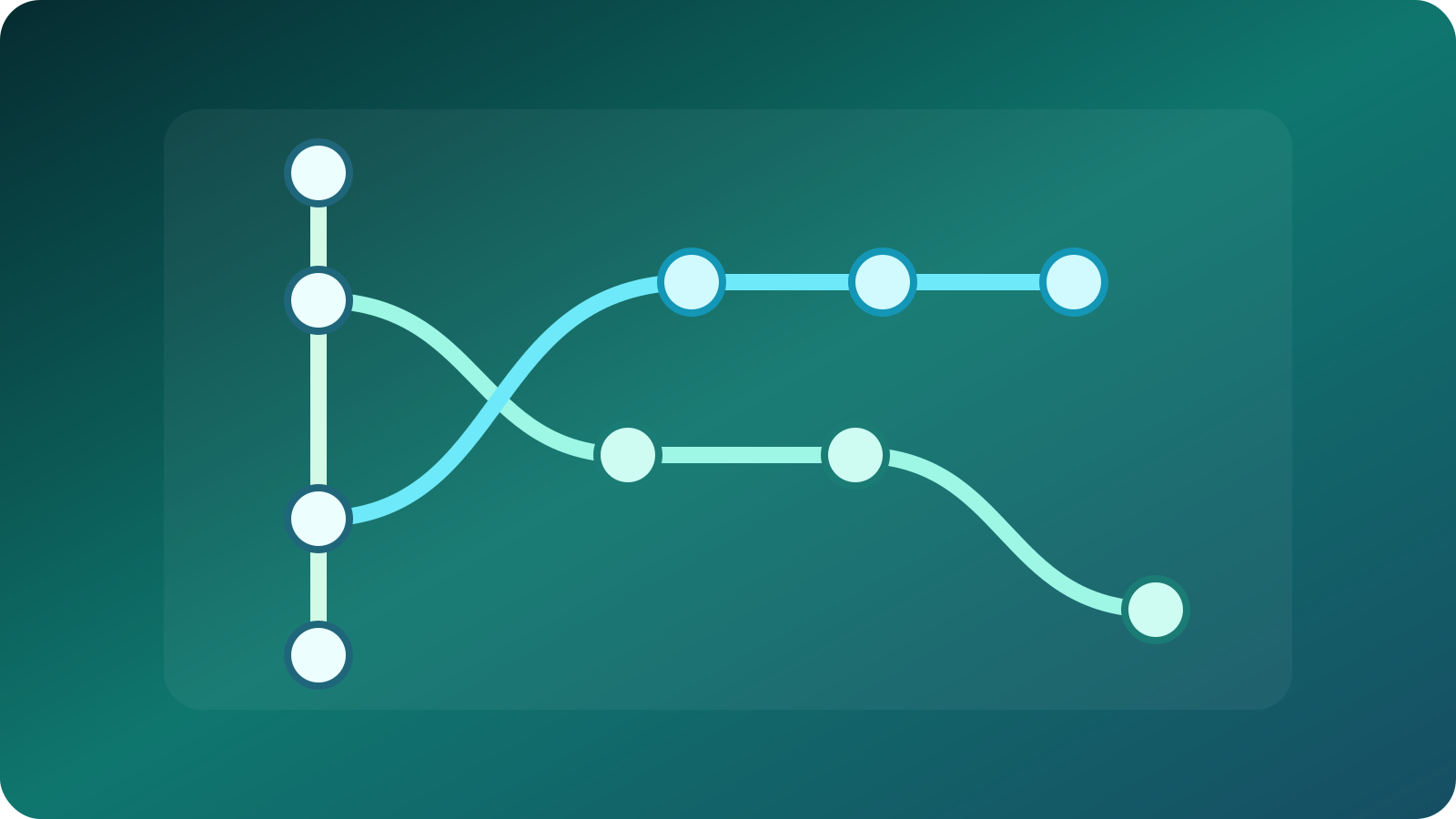
Git 是一個分布式版本控制系統(Distributed Version Control System, DVCS),用於管理專案的版本歷史記錄。它允許多人協作開發,並追蹤每個文件的變更。
Git is a Distributed Version Control System (DVCS) used to manage project history and versions. It allows multiple developers to collaborate and tracks changes in every file.
- Repository(倉庫) — 儲存專案文件及其歷史記錄的地方,分為本地倉庫和遠端倉庫。
- Commit(提交) — 將工作目錄中的變更記錄到倉庫。每個 commit 都有唯一的 SHA-1 哈希值。
- Branch(分支) — 從主線分離出來的獨立開發線,不影響主分支(如
main)的情況下進行開發。 - Merge(合併) — 將一個分支的變更整合到另一個分支的動作。
- Remote(遠端) — 位於其他伺服器上的倉庫,用於協作和備份(如 GitHub、GitLab)。
- Repository — Where project files and their history are stored. Can be local or remote.
- Commit — Records changes to the repository. Each commit has a unique SHA-1 hash.
- Branch — An independent line of development separated from the main line (e.g.,
main). - Merge — Integrating changes from one branch into another.
- Remote — A repository hosted on a server or internet (e.g., GitHub, GitLab) for collaboration.
Git 的工作流程涉及以下四個關鍵區域,形成完整的版本控制循環:
Git's workflow involves four key areas, forming a complete version control cycle:
git pull:等同於
git fetch + git merge,直接將遠端變更下載並合併。建議:多人協作時,先用
git fetch 確認變更後再手動 git merge,可降低意外衝突風險。
git fetch: Downloads the latest data from the remote repository to your local repo without automatically merging it.git pull: Equivalent to
git fetch + git merge. Downloads and immediately merges the changes.Tip: For team collaboration, use
git fetch to review changes before manually running git merge to avoid unexpected conflicts.
🚀 首次推送新專案到遠端的標準流程 🚀 Standard Workflow for First Push
- 初始化本地倉庫:
git init - 將所有檔案加入暫存區:
git add . - 提交到本地倉庫:
git commit -m "first commit" - 在 GitHub 建立遠端 repository(倉庫)
- 新增遠端倉庫連結:
git remote add origin <遠端倉庫網址> - 首次推送到遠端(並設置 upstream):
git push -u origin main
- Initialize local repository:
git init - Add all files to staging area:
git add . - Commit to local repository:
git commit -m "first commit" - Create a remote repository on GitHub
- Add remote repository URL:
git remote add origin <REMOTE_URL> - First push to remote (and set upstream):
git push -u origin main
📋 核心命令一覽 📋 Core Commands List
| 命令 | 說明 |
|---|---|
git init | 初始化一個新的 Git 倉庫 |
git clone <url> | 從遠端倉庫複製一個倉庫到本地 |
git add <file> | 將指定文件添加到暫存區 |
git commit -m "msg" | 提交暫存區的變更到本地倉庫 |
git status | 查看工作目錄和暫存區的狀態 |
git log | 查看提交歷史記錄 |
git branch | 列出所有分支(帶 * 表示當前分支) |
git switch <branch> | 切換到指定分支(新版 Git 推薦) |
git checkout <branch> | 切換到指定分支(舊用法) |
git merge <branch> | 將指定分支合併到當前分支 |
git fetch | 從遠端獲取資料(不自動合併) |
git pull | 拉取遠端變更並合併(fetch + merge) |
git push | 將本地變更推送至遠端倉庫 |
| Command | Description |
|---|---|
git init | Initialize a new Git repository |
git clone <url> | Clone a remote repository to your local machine |
git add <file> | Add a specified file to the staging area |
git commit -m "msg" | Commit staged changes to the local repository |
git status | Check the status of the working directory and staging area |
git log | View the commit history |
git branch | List all branches (* indicates the current branch) |
git switch <br> | Switch to a specified branch (Recommended in newer Git) |
git checkout <br> | Switch to a specified branch (Legacy approach) |
git merge <branch> | Merge a specified branch into the current branch |
git fetch | Fetch data from remote (without auto-merging) |
git pull | Fetch remote changes and merge them (fetch + merge) |
git push | Push local changes to the remote repository |
🔗 git remote 管理命令 🔗 Managing git remotes
git remote -v                          # 查看遠端
git remote add origin <url>            # 新增遠端
git remote remove <name>               # 移除遠端
git remote rename <old> <new>          # 重新命名遠端
git remote show <name>                 # 顯示遠端詳細資訊
git remote -v # List remotes
git remote add origin <url> # Add a remote
git remote remove <name> # Remove a remote
git remote rename <old> <new> # Rename a remote
git remote show <name> # Show remote detailsGit 的配置通過 git config 命令設置,分為三個層級:
Git is configured using the git config command, divided into three levels:
| 層級 | 參數 | 影響範圍 |
|---|---|---|
| 系統層級 | --system | 影響所有使用者 |
| 全域層級 | --global | 影響當前使用者 |
| 專案層級 | --local | 僅影響當前倉庫(預設) |
| Level | Parameter | Scope |
|---|---|---|
| System | --system | Affects all users on the system |
| Global | --global | Affects the current user |
| Local | --local | Affects only the current repository (Default) |
常用配置範例 Common Configurations
# 設置使用者名稱
git config --global user.name "Your Name"

# 設置電子郵件地址
git config --global user.email "your.email@example.com"

# 設置預設編輯器(如 vim)
git config --global core.editor "vim"

# 查看所有配置
git config --list
# Set user name
git config --global user.name "Your Name"
# Set email address
git config --global user.email "your.email@example.com"
# Set default editor (e.g., vim)
git config --global core.editor "vim"
# List all configurations
git config --list🔀 Rebase vs. Merge 對比
🔀 Rebase vs. Merge Comparison
| 比較維度 | git merge | git rebase |
|---|---|---|
| 歷史記錄 | 保留完整分支合併歷史,產生一個 merge commit | 重寫提交歷史,呈現線性歷史 |
| 可讀性 | 歷史較複雜,但忠實反映開發過程 | 歷史整潔,易於閱讀 |
| 安全性 | ✅ 較安全,不改變已有 commit | ⚠️ 切勿對已推送的公共分支使用 |
| 適用情境 | 功能分支合併回主分支,保留完整記錄 | 本地整理提交、同步主分支最新進度 |
| Aspect | git merge | git rebase |
|---|---|---|
| History | Preserves complete merge history, creates a merge commit | Rewrites history, creating a linear timeline |
| Readability | Complex history, but faithfully reflects development | Clean and easy to read |
| Safety | ✅ Safe, does not alter existing commits | ⚠️ NEVER use on pushed public branches |
| Use Case | Merging feature branch back to main, keeping full records | Cleaning up local commits, syncing with main branch |
# Merge 方式
git checkout main
git merge feature

# Rebase 方式
git checkout feature
git rebase main
# The Merge Way
git checkout main
git merge feature
# The Rebase Way
git checkout feature
git rebase main📦 Stash(暫存)📦 Stash
git stash           # 暫存當前工作目錄的變更
git stash pop       # 恢復最近一次暫存
git stash list      # 查看所有暫存列表
git stash # Stash current working directory changes
git stash pop # Restore the most recently stashed changes
git stash list # List all stashed changes🏷️ Tag(標籤)🏷️ Tag
git tag v1.0            # 建立標籤
git push origin v1.0    # 推送標籤到遠端
git tag v1.0 # Create a tag
git push origin v1.0 # Push tag to remote典型 Fork-based 協作流程Typical Fork-based Workflow
- Fork 原始倉庫到自己的帳戶
- Clone 到本地:
git clone <forked-url> - 建立分支:
git checkout -b feature-branch - 提交變更:
git add . && git commit -m "Add feature" - 推送分支:
git push origin feature-branch - 在 GitHub 提交 Pull Request(PR)
- Fork the original repository to your own account
- Clone it locally:
git clone <forked-url> - Create a branch:
git checkout -b feature-branch - Commit changes:
git add . && git commit -m "Add feature" - Push the branch:
git push origin feature-branch - Submit a Pull Request (PR) on GitHub
Pull Request (PR):提交變更請求,請求將自己的分支合併到原始倉庫,並可進行代碼審查。 Fork: Copy someone else's repo to your account for independent development.
Pull Request (PR): A request to merge your changes into the original repository, allowing for code review before merging.
- 頻繁提交 — 小步提交,並寫清楚的 commit 訊息(如:feat、fix、docs 前綴)。
- 分支開發 — 避免直接在主分支(
main)上修改,使用功能分支。 - 定期同步 — 使用
git pull更新本地倉庫,避免大幅落後。 - 推送前檢查 — 先拉取並解決衝突,避免覆蓋他人工作。
- Commit often — Make small commits with clear messages (e.g., prefix with feat, fix, docs).
- Branch development — Avoid modifying the
mainbranch directly; use feature branches instead. - Sync regularly — Update your local repo with
git pullto avoid falling behind. - Check before push — Pull and resolve conflicts first to avoid overwriting others' work.
type(scope): description例如:
feat(auth): add OAuth2 login、fix(api): resolve timeout issue
We recommend the Conventional Commits format: type(scope): descriptionExample:
feat(auth): add OAuth2 login, fix(api): resolve timeout issue
⚡ 合併衝突⚡ Merge Conflicts
當多個變更修改同一文件的同一部分時發生。衝突標記:
Occurs when multiple changes modify the same part of a file. Conflict markers look like this:
<<<<<<< HEAD
# 你的版本
=======
# 遠端版本
>>>>>>> origin/main
<<<<<<< HEAD
# Your version
=======
# Remote version
>>>>>>> origin/main解決步驟:手動編輯衝突文件 → 保存 → git add <file> → git commit
Resolution Steps: Manually edit the file → Save → git add <file> → git commit
常見錯誤訊息速查Common Error Messages
| 錯誤訊息 | 原因 | 解決方法 |
|---|---|---|
refusing to merge unrelated histories | 兩倉庫無共同歷史 | git pull origin main --allow-unrelated-histories |
! [rejected] main -> main (fetch first) | 遠端有新提交 | git pull --rebase 後再推送 |
fatal: unable to auto-detect email | 未設定 email | git config --global user.email "you@example.com" |
fatal: No url found for submodule | 子模組未初始化 | git submodule update --init --recursive |
| Error Message | Cause | Solution |
|---|---|---|
refusing to merge unrelated histories | Repos share no common history | git pull origin main --allow-unrelated-histories |
! [rejected] main -> main (fetch first) | Remote has new commits | Run git pull --rebase before pushing |
fatal: unable to auto-detect email | Email is not set | git config --global user.email "you@example.com" |
fatal: No url found for submodule | Submodule not initialized | git submodule update --init --recursive |
| 命令 | 作用 | 修改歷史 | 適用情境 |
|---|---|---|---|
git reset --soft HEAD^ | 撤銷最後 commit,變更保留暫存區 | ✅ 是 | 尚未推送,想修改 commit 訊息 |
git reset --hard HEAD^ | 撤銷最後 commit,丟棄所有變更 | ✅ 是 | 尚未推送,確定放棄該次變更 |
git revert <commit-id> | 建立一個新 commit 來反轉指定提交 | ❌ 否 | 已推送到遠端,安全回退 |
git restore <file> | 丟棄工作目錄中未暫存的變更 | ❌ 否 | 只想還原單一檔案的未暫存修改 |
git restore --staged <file> | 將已暫存的檔案移出暫存區 | ❌ 否 | 誤將檔案 add 進暫存區 |
| Command | Action | Alters History | Use Case |
|---|---|---|---|
git reset --soft HEAD^ | Undoes commit, keeps changes in staging | ✅ Yes | Unpushed, want to rewrite commit msg |
git reset --hard HEAD^ | Undoes commit, destroys all changes | ✅ Yes | Unpushed, absolutely sure to discard changes |
git revert <hash> | Creates a reverse commit to undo changes | ❌ No | Already pushed to remote, safe rollback |
git restore <file> | Discards uncommitted changes in working dir | ❌ No | Want to revert a single file's modifications |
git restore --staged <file> | Removes file from staging area | ❌ No | Accidentally added file to staging |
git reset --hard 會永久丟失未提交的變更,操作前請確認。若誤操作,可嘗試用 git reflog 找回(見第 17 節)。
git reset --hard will permanently destroy uncommitted changes. Please be careful. If done by mistake, try using git reflog to recover (see Section 17).
格式化顯示Formatted Output
git log --oneline                              # 簡短摘要
git log --graph --decorate --all --oneline     # 圖形化分支顯示
git log --pretty=format:"%h %an %ad | %s" --date=short  # 自訂格式
git log --oneline # Short summary
git log --graph --decorate --all --oneline # Graphical branch view
git log --pretty=format:"%h %an %ad | %s" --date=short # Custom format篩選查詢Filtering Log
git log <file>                                # 只看特定檔案
git log --author="作者名"                      # 只看某作者
git log --since="2024-01-01" --until="2024-06-30"  # 特定期間
git log <file> # Specific file only
git log --author="Name" # Specific author only
git log --since="2024-01-01" --until="2024-06-30" # Date range可用 git config 設定常用命令的別名,提升效率:
Use git config to set shortcuts for common commands, boosting efficiency:
git config --global alias.st status
git config --global alias.co checkout
git config --global alias.br branch
git config --global alias.ci commit
git config --global alias.lg "log --oneline --graph --decorate --all"git st、git co、git br 就等同執行對應命令,大幅節省輸入時間!
Once set, typing git st, git co, or git br will execute the mapped command, saving tons of keystrokes!
用途:讓一個 Git 倉庫中嵌入另一個倉庫,常用於管理第三方依賴或多專案協作。
Purpose: Embed one Git repository inside another. Commonly used for managing 3rd-party dependencies or multi-project repos.
git submodule add <repo-url> <path>          # 新增子模組
git submodule update --init --recursive      # 初始化/更新
git submodule status                         # 查看狀態
git clone --recursive <repo-url>             # Clone 時一併初始化子模組
git submodule add <repo-url> <path> # Add a submodule
git submodule update --init --recursive # Initialize/Update
git submodule status # Check status
git clone --recursive <repo-url> # Clone with all submodules initialized.gitmodules 相關段落2. 執行
git rm --cached <path>3. 刪除子模組資料夾 1. Remove the entry from
.gitmodules2. Run
git rm --cached <path>3. Delete the submodule directory from disk
用途:指定哪些檔案或資料夾不被 Git 追蹤,避免將不必要的檔案(如編譯產物、金鑰)加入版本控制。
Purpose: Specify files or directories that Git should ignore, preventing build artifacts, temp files, or secrets from being tracked.
# 編譯產物
*.o
*.class
dist/
build/

# 作業系統暫存
.DS_Store
Thumbs.db

# 憑證/密鑰(重要!)
.env
*.pem
*.key
# Build Artifacts
*.o
*.class
dist/
build/
# OS temporary files
.DS_Store
Thumbs.db
# Secrets & Keys (Important!)
.env
*.pem
*.keygit rm --cached <file> 才能讓 .gitignore 規則生效。
If a file is already being tracked by Git, adding it to .gitignore won't work. You must first untrack it using git rm --cached <file>.
用途:在特定 Git 操作前後自動執行腳本。設定方式:在 .git/hooks/ 目錄下放置對應 shell 腳本並賦予執行權限。
Purpose: Run custom scripts automatically before or after Git operations. Setup: Place shell scripts in the .git/hooks/ directory and make them executable.
| Hook 名稱 | 觸發時機 | 常見用途 |
|---|---|---|
pre-commit | 提交前 | 自動檢查程式碼格式、執行 lint |
pre-push | 推送前 | 自動執行單元測試 |
commit-msg | 填寫 commit 訊息時 | 驗證 commit 訊息格式是否正確 |
| Hook Name | Trigger | Common Use Cases |
|---|---|---|
pre-commit | Before commit | Format code, run linters |
pre-push | Before push | Run unit test suites |
commit-msg | Upon commit msg entry | Validate commit message conventions |
pre-commit hook 範例pre-commit Hook Example
#!/bin/sh
# 檔案路徑:.git/hooks/pre-commit
# 賦予執行權限:chmod +x .git/hooks/pre-commit

echo "🔍 執行 pre-commit 檢查..."
# 檢查是否有 console.log 殘留
if git diff --cached --name-only | xargs grep -l "console.log" 2>/dev/null; then
  echo "❌ 發現 console.log,請移除後再提交。"
  exit 1
fi
echo "✅ pre-commit 檢查通過。"
exit 0
#!/bin/sh
# Path: .git/hooks/pre-commit
# Make executable: chmod +x .git/hooks/pre-commit
echo "🔍 Running pre-commit checks..."
# Check for leftover console.log
if git diff --cached --name-only | xargs grep -l "console.log" 2>/dev/null; then
echo "❌ Found console.log! Please remove before committing."
exit 1
fi
echo "✅ Checks passed."
exit 0- 使用
.gitignore忽略.env、*.pem等敏感檔案。 - 若誤加入敏感資訊,請立即用
git filter-repo等工具從歷史記錄中徹底抹除。 - 可利用 git-secrets 搭配 hooks 自動攔截含敏感字串的 commit。
- 敏感資訊應改由雲端服務(如 AWS Secrets Manager)或環境變數統一管理。
- Always use
.gitignorefor files like.envand*.pem. - If you accidentally pushed secrets, immediately purge them from your history using tools like
git filter-repo. - Consider using git-secrets to block commits containing sensitive patterns.
- Manage production secrets using Environment Variables or dedicated Vaults (e.g., AWS Secrets Manager).
git reflog 是 Git 的時光機,能查詢 HEAD 或分支的所有移動紀錄,即使 commit 被 reset --hard 刪除了也能找回!
git reflog is Git's time machine. It records all movements of the HEAD. You can use it to recover commits even after a reset --hard!
git reflog                         # 查詢所有 HEAD 移動記錄
git checkout <commit-hash>         # 切回指定 commit (預覽狀態)
git branch recover-br <hash>       # 基於該 hash 建立新分支拯救資料
git reflog # View all HEAD movement logs
git checkout <commit-hash> # Switch to the lost commit to inspect
git branch recover-br <hash> # Create a new branch at that commit to save it用途:將某分支的單一或多個 commit 獨立抽取,並應用到當前分支。常用於 Hotfix(緊急修復)或把測試分支的某個功能提前拉上線。
Purpose: Take specific commits from one branch and apply them to your current branch. Widely used for hotfixes or backporting features.
git cherry-pick <commit-hash>    # 應用單一 commit
git cherry-pick A^..B            # 應用從 A 到 B 的範圍 (包含 A)
git cherry-pick <commit-hash> # Apply a single commit
git cherry-pick A^..B # Apply a range of commits from A to B (inclusive)用途:如果你只需要大倉庫裡的一小部分資料夾,使用稀疏檢出可以只下載你關心的目錄,非常適合大型 Monorepo 專案,能省下極大的磁碟空間與 Clone 時間。
Purpose: Download only a specific subset of directories from a large repository. Highly recommended for Monorepos to save disk space and clone time.
git sparse-checkout init                      # 啟用稀疏檢出
git sparse-checkout set <dir1> <dir2>         # 設定要下載的目錄
git sparse-checkout disable                   # 關閉並恢復下載全倉庫
git sparse-checkout init # Enable sparse checkout
git sparse-checkout set <dir1> <dir2> # Specify directories to pull
git sparse-checkout disable # Disable and download full repo用途:Git 不擅長處理龐大的二進位檔案。Git LFS 是官方擴充工具,會用指標(Pointer)代替大檔案進入 Git 歷史紀錄,將實體檔案存放在獨立伺服器,避免倉庫過度肥大。
Purpose: Git struggles with large binaries. Git LFS is an extension that replaces large files with text pointers inside Git, while storing the real file on a remote server to prevent repo bloating.
git lfs install          # 安裝 LFS (只需執行一次)
git lfs track "*.psd"    # 指定副檔名交由 LFS 追蹤
git lfs ls-files         # 查看目前被 LFS 管理的檔案清單
git lfs install # Install LFS locally
git lfs track "*.psd" # Tell LFS to track specific file extensions
git lfs ls-files # List files currently tracked by LFS